
Remove Background from Signature
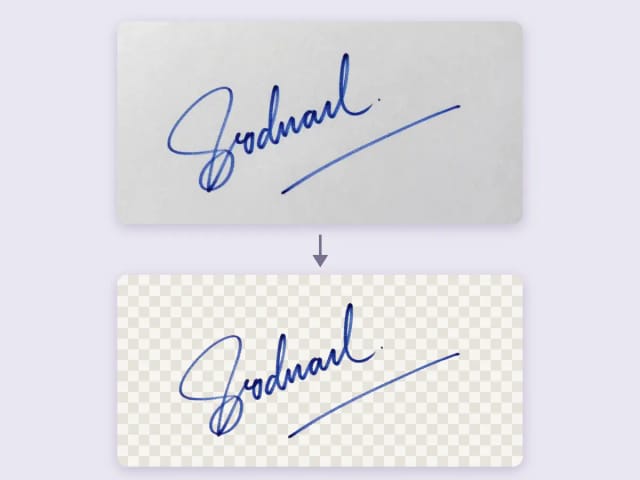
Remove the background from a photo of your signature for free, right in your browser: your signature never leaves your device. Keep the ink or make it black or blue, crop it to the edge and download a transparent PNG, with no sign-up and no watermark.
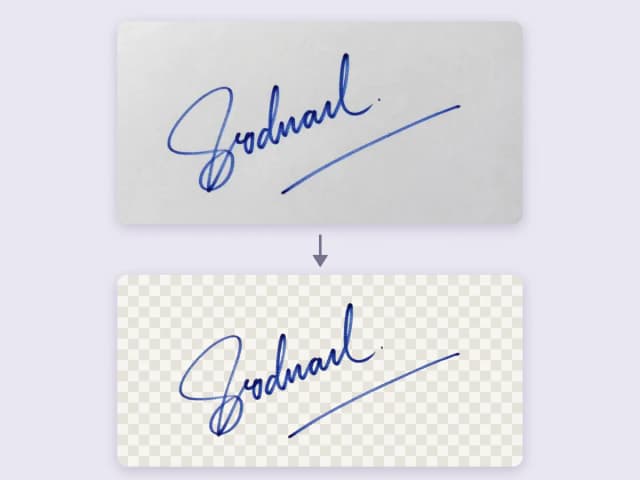 Example
Your signature never leaves your device: it is processed in your browser and never uploaded.
How to remove the background from a signature
From a photo on paper to a signature you can place on any document.
Sign and take a photo
Sign on plain light paper, ideally with a dark pen, and take a photo from above in even light. A scan works too.
Upload it
Upload the photo or try a sample. Your browser removes the paper at once, and nothing is uploaded.
Adjust the ink
Keep the color of your pen or switch to black or blue. Move the threshold if faint strokes are missing or gray paper remains.
Download the PNG
Download a transparent PNG cropped to the signature, or one on white. You can also copy it and paste it into a document.
Try it on
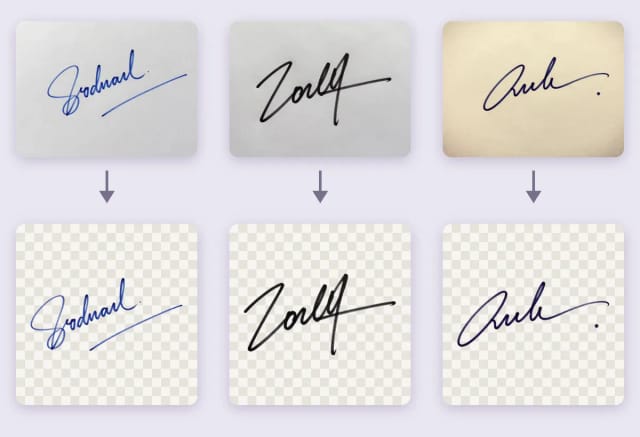
Photos from your phone, in any light
Shadows, warm lamps and the desk are left out.
A phone photo is never evenly lit: one corner is darker, the paper looks warm under a lamp, or the edge of the desk shows. The tool compares every pixel with the paper around it, not with one fixed gray, so shadows and warm light stay out and only the ink is kept.
It works with ballpoint pens, gel pens, markers and fountain pens. Specks from the paper grain are removed, the dot over an i stays, and anything that only peeks in from the edge of the photo, like the desk, is left out.
Try it on
Change the color of your signature
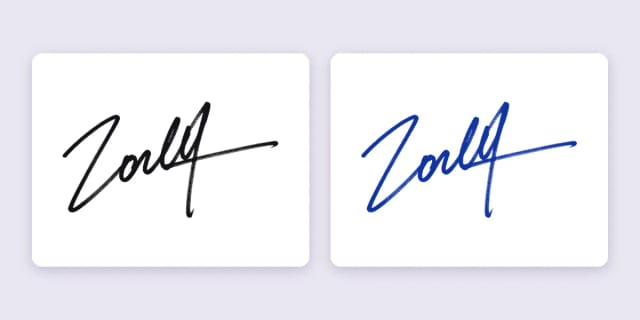
Solid black or blue, or the color of your pen.
Choose Black or Blue to turn the ink into one solid, even color, which looks cleaner on a document than a photographed pen. Original keeps the color of your pen, without the paper.
Need a background instead of transparency? Choose White to download the signature on a solid white background, for forms that do not accept transparent images.
Try it on
Use your signature in Microsoft Word
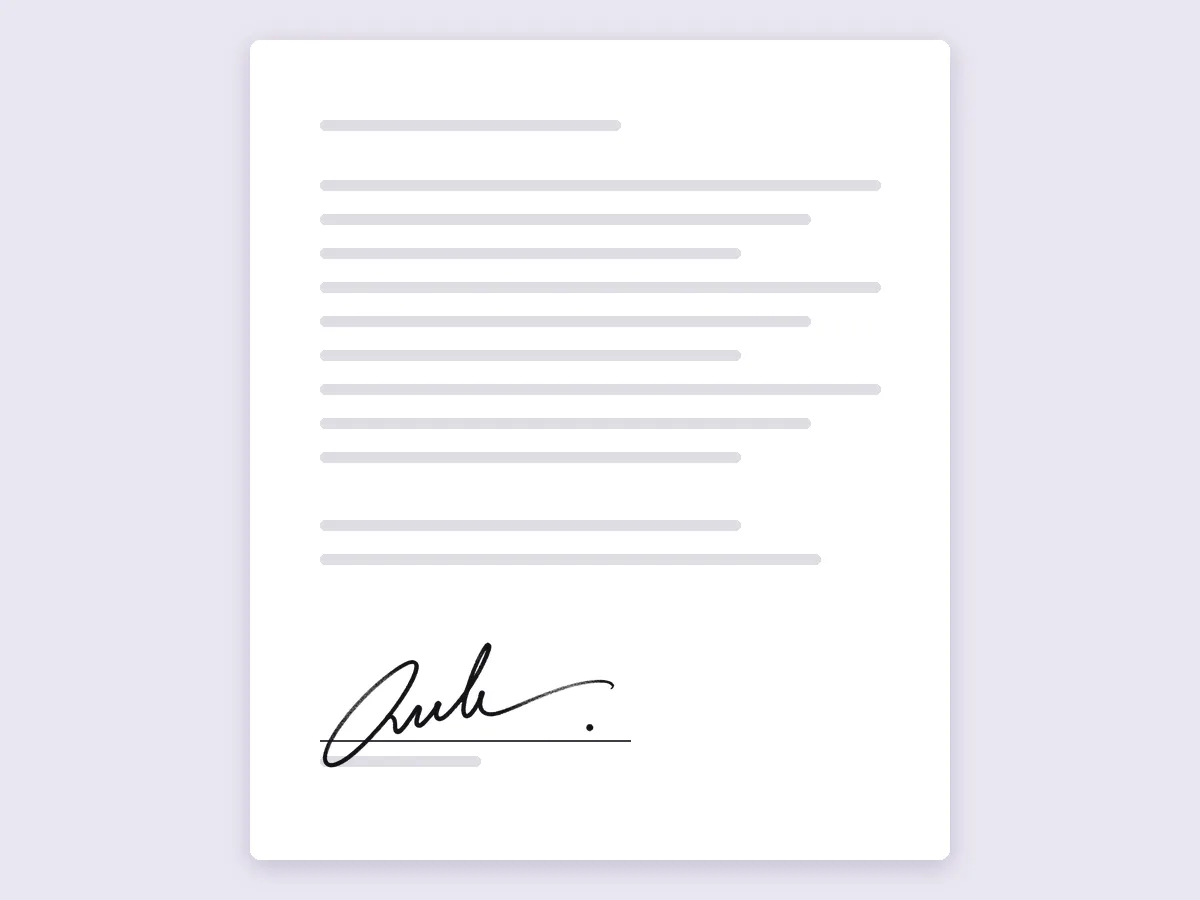
Insert the PNG and place it on the line.
Download the transparent PNG, then in Word choose Insert > Pictures and pick the file. To place it over a signature line, select the picture, set Wrap Text to In Front of Text and drag it into place. The line stays visible under the ink.
Word also has Set Transparent Color, but it makes only one color transparent, and Microsoft notes that areas that look like one color are often many subtle shades. On a photo of a signature, the paper usually stays gray in patches, so removing the paper first gives a clean result.
Try it on
Add your signature to a PDF
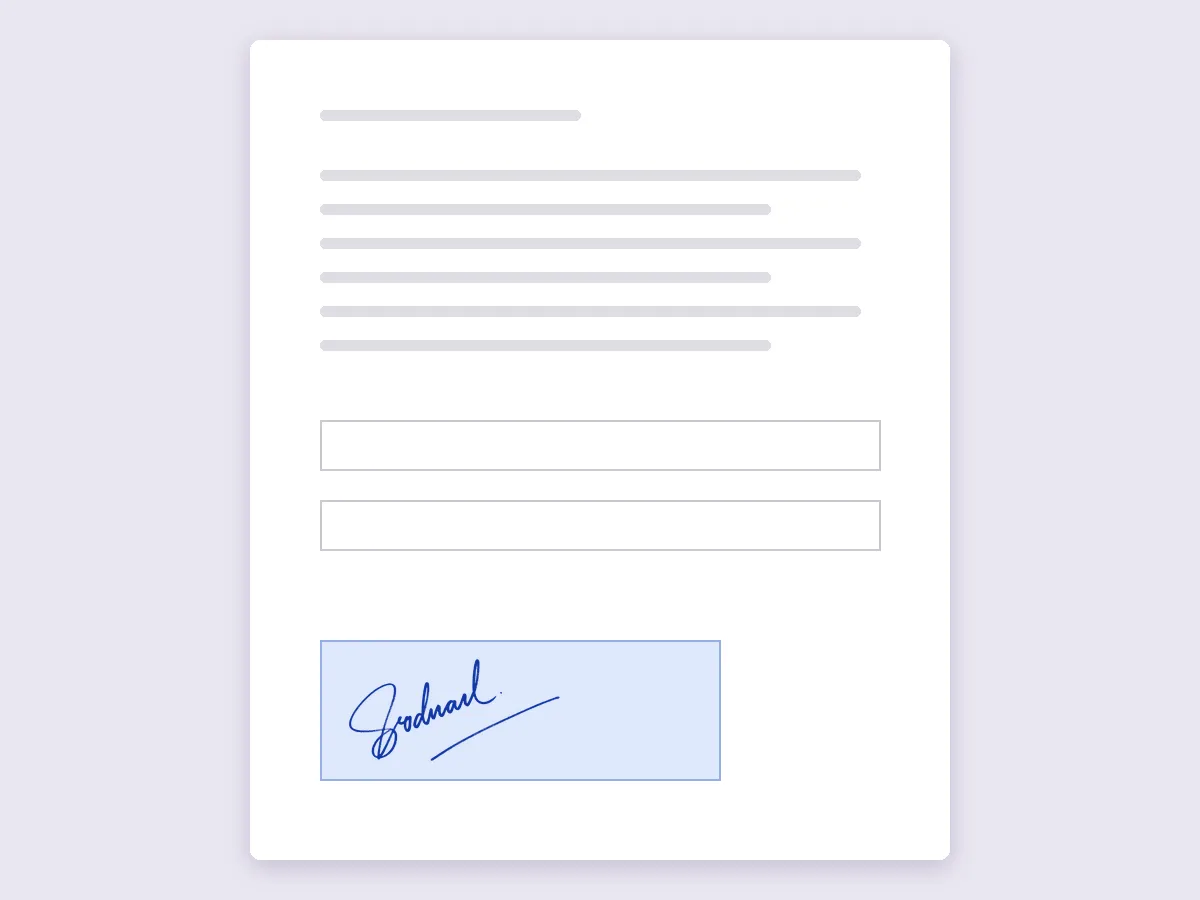
A transparent PNG sits on the field without covering it.
Most PDF readers and editors can add an image or a signature from a file: use the transparent PNG from here and place it on the signature field. Because the background is transparent, the field and any line behind it still show.
If your signature is already inside a PDF, take a screenshot of it or export the page as an image, upload that here, and download the signature without the background.
Try it on
Remove the background with Microsoft Paint
What Paint does, and what this tool adds.
In the latest version of Windows 11, Microsoft Paint has a Remove background button that uses AI to isolate the subject of a photo with one click, and Paint can save transparent PNGs. It is made to find a subject such as a person or an object, so check thin strokes and the edges of the paper before you save.
This tool needs no install and works on any phone or computer. It looks for ink against paper, lets you change the ink color, and crops the PNG to the signature. For photos of people and products, use the background remover.
Who uses a transparent signature
Anyone who signs documents on a screen more often than on paper.
Freelancers
Sign invoices and quotes without printing and scanning every time.
Remote teams
Add your signature to contracts and PDFs from home.
Small businesses
Put a clean signature on letters, receipts and email footers.
Students
Sign forms and applications that ask for an image of your signature.
Why remove the background here
A signature is private: it should not have to leave your device.
Never leaves your device
Your signature is processed in your browser and never uploaded to a server.
Black or blue ink
Turn a photographed pen into a solid black or blue signature.
Cropped to the edge
The PNG ends where the signature ends, ready to place on a line.
Handles shadows
Uneven light, warm lamps and the desk at the edge are left out.
Transparent or white
Download a transparent PNG, or one on white for strict forms.
Free, no watermark
No sign-up, no limits and no watermark on the download.
Remove background from signature: frequently asked questions
Still have a question? Visit the help center →
Is my signature uploaded anywhere?
Is it free?
How do I make my signature transparent?
How do I change the color of my signature to black or blue?
Why do faint strokes disappear or gray spots remain?
How do I remove the background from a signature in a PDF?
Does it work on my phone?
CreArt is not affiliated with, endorsed or sponsored by Microsoft. Microsoft is a trademark of Microsoft Corporation.


Background Remover
CreArt's Background Remover cuts the subject out of any photo for free, without sign-up, and gives you a transparent PNG, a pure white background or a solid color, usually in under 20 seconds.


Image Upscaler
CreArt's Image Upscaler enlarges photos 2x or 4x with a dedicated AI upscaling model: a 1,000 × 1,500 px photo becomes 4,000 × 6,000 px. You see the exact output size before you start. Free to try, no sign-up.


AI Background Changer
CreArt's AI background changer replaces the background of any photo for free, without sign-up, usually in under 20 seconds: pick one of 10 scenes or describe your own.


AI Object Remover
CreArt's AI Object Remover is a free tool that erases unwanted objects and people from a photo: paint over them and the AI rebuilds the background, without sign-up and usually in under 20 seconds.


AI Action Figure Generator
CreArt's AI Action Figure Generator turns a photo into an image of a collectible figure, free and without sign-up: pick a blister pack, an anime figure, a vinyl toy or a superhero, add a name for the box, and get it usually in under 20 seconds.