Image to Video AI

Animate any still photo into a short video clip with AI. Upload an image, choose a camera motion, and download the clip.

Input image
Drag an image here or click to upload
Video model
Example · No Style
Settings· PixVerse V6
Video model

Prompt library

Each card carries the exact prompt. Copy it, or open it here with the text already in place — you just add the photo.

In the stadium crowd

Your photo

Drops the person from your photo into a packed stand, cheering with everyone else.

The person in the photo is in the middle of a packed stadium crowd at night, wearing team colours, jumping and cheering with both arms raised as the people around them celebrate. Floodlights and camera flashes flicker across the stand, confetti drifts through the air, handheld camera with a slight shake.

Make them dance

Your photo

The classic: your still photo starts dancing, on beat and in full body.

The person in the photo starts dancing with confident, rhythmic full-body moves, shoulders and hips on the beat, feet stepping in place. Club lighting sweeps across the scene in colour, the background stays where it is, the camera holds steady at a medium shot.

Runway walk

Your photo

Turns a standing portrait into a catwalk entrance.

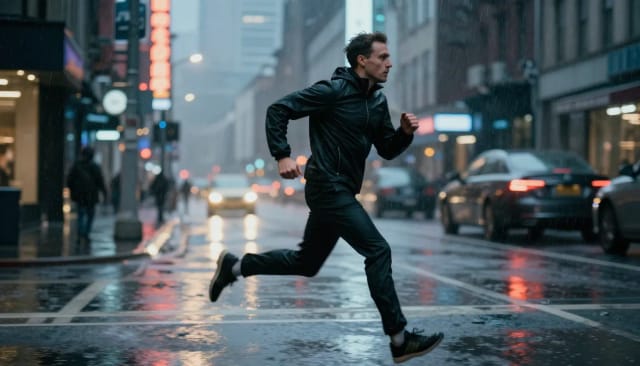
The person in the photo walks straight towards the camera down a fashion runway with a slow, deliberate stride, chin level and arms swinging naturally. Photographers flash from both sides, the runway lights glow underfoot, the camera tracks slowly backwards to keep them centred.

The reunion

Your photo

Two people in one photo turn towards each other and embrace. Works with old family pictures.

The people in the photo turn towards each other, break into a smile and pull into a warm embrace, holding it for a beat before easing back. Soft natural light, gentle breathing motion, the camera drifts in very slightly.

Talking to camera

Your photo

A still portrait starts speaking and gesturing, like a piece to camera.

The person in the photo speaks directly to the camera with natural mouth movement, blinking, small head tilts and one hand gesturing to punctuate what they are saying. The framing stays on a steady medium close-up.

Your pet dances

Your photo

The pet in your photo stands up on two legs and dances.

The animal in the photo rises onto its hind legs and dances in place, front paws bouncing side to side in rhythm, head bobbing, tail moving. It keeps its own fur, markings and expression. Warm indoor light, camera locked off.

See every video prompt →
From upload to finished clip
<30s
Camera motions to choose from
4
generate right from the browser
No install
Is all you need to start
1 photo

How to use it

How to turn an image into a video with AI in 4 steps

No editing skills, no timeline — go from a still photo to a moving clip in a few clicks.

  1. Upload your photo

    Drop in the image you want to animate — a portrait, landscape, product shot or artwork. A sharp, high-resolution file gives the AI the most to work with.

  2. Pick a camera motion

    Choose from Slow zoom in, Slow pan, Orbit or Ken Burns to set how the shot moves. Each one gives the clip a different feel, from subtle drift to a full rotation around the subject.

    Choosing a camera motion for the clip
  3. Describe the motion (optional)

    Leave a short prompt if you want something specific — rippling water, drifting clouds, a slow push toward the subject. Skip it and the AI picks natural movement for the scene.

  4. Download your video clip

    The AI generates your animated clip, which takes a minute or more. Preview it, then download the video and share it straight to social, a site or a presentation.

How it works

From a still photo to a moving clip with Image to Video AI

What the tool does, how it animates your image, and why it beats building the motion by hand.

Image to Video AI is a tool that turns a still photo into a short animated video clip. You upload an image, the AI adds natural motion to it, and you get back a video you can download and share. A clip takes a minute or more to generate.

It reads what's in your photo and animates it in a way that fits the scene: a portrait might blink and shift slightly, a landscape might get moving clouds or rippling water, a product shot might rotate or catch the light. You never touch a timeline or set keyframes. The photo goes in, the clip comes out. You steer the result with four camera motions — Slow zoom in, Slow pan, Orbit and Ken Burns — or leave a short prompt describing exactly how you want things to move.

Image to video AI animating a still photo

Under the hood, the model analyzes depth, subjects and background separately, then generates the frames in between to create smooth movement rather than a stiff pan-and-zoom effect. That's why an animated face keeps its features and a moving scene stays coherent instead of melting.

Working from a real photo keeps the result grounded — this is the AI image to video generator to reach for when you already have the exact image you want to see move. If you'd rather build a clip from a written description instead, the text to video generator is a different starting point, but here the photo is the source of truth.

Depth and subjects analyzed for smooth movement

Doing this by hand means learning After Effects or a motion tool, cutting out layers and animating each element frame by frame — hours of work for a few seconds of footage. Image to Video AI collapses that into one upload.

For the best output, start with a clean, sharp image. If your source photo is soft or low-resolution, run it through the AI image upscaler first, brighten a flat shot with the photo enhancer, or isolate a busy subject with the background remover before you animate it. A better input almost always means a better clip.

Manual animation compared to image to video AI

Who it's for

Who Image to Video AI is for

If you have one photo and want it to move, this is built for you.

Social creators

Turn a single strong photo into scroll-stopping motion for Reels, Shorts and TikTok without opening a video editor.

E-commerce and product sellers

Give a flat product shot a slow orbit or zoom so listings and ads feel more alive than a static image.

Marketers and small businesses

Add subtle movement to a hero image or campaign visual for a site, email or presentation, no design team needed.

People reviving old memories

Animate an old family photo or portrait with gentle, natural movement to bring the moment back to life.

Anyone with just one image

You don't need a video project or footage — an AI video generator from a single image is enough to get a moving clip.

Pricing

Plans that scale when you need more

Try Image to Video AI, then move up to a plan when you're animating photos regularly and want more generations.

Free

$0

  • 100 credits every day
  • The Auto model, on our own servers
  • No card needed
This tool needs a paid plan

Paid plans

Basic · Starter · Creator

  • 1,600 to 10,000 credits a month
  • Every AI model, including premium ones
  • AI video, and no ads in the mobile app

Why use it

Why choose Image to Video AI

A AI image to video generator built for one job: making a still photo move, fast.

No signup needed

Animate a photo without creating an account or paying upfront. Upload, pick a motion and generate a clip straight away in the browser.

Four camera motions

Slow zoom in, Slow pan, Orbit and Ken Burns cover most of what you'd want from a single shot — from a gentle drift to a full rotation around your subject.

Motion that fits the scene

The AI reads depth and separates subject from background, so faces keep their features and landscapes move naturally instead of warping.

No editing timeline

No keyframes and no timeline. Upload an image and the AI video generator returns a short clip. A clip takes a minute or more; keep the page open while it renders.

Optional prompt control

Type a short description of how things should move and the model follows it — rippling water, drifting clouds, a slow push in. Leave it blank for automatic motion.

Works with any image

Photos, product shots, illustrations and AI artwork all animate. Start from a real photo when you already have the exact image you want to see move.

FAQ

Frequently asked questions about Image to Video AI

Animating a photo, camera motions and whether it's — answered.

Still have a question? Visit the help center →

Is this image to video AI free?
Animating a photo runs a premium video model, so each clip uses credits from your plan — video costs real compute, and we would rather show you the price than hide it. You see the exact cost before you generate, and there is no watermark on the download.
How do I turn a photo into a video with AI?
Upload your photo, pick one of the four camera motions (Slow zoom in, Slow pan, Orbit or Ken Burns), and the AI animates it into a short clip you can download. You can also leave a short prompt describing exactly how you want things to move.
Do I need editing skills to animate an image?
No editing skills are needed. You never open a timeline or set keyframes — the AI adds the motion for you, so an AI image to video generator like this does the work that used to require After Effects.
How does AI image to video generation work?
The AI analyzes depth, subjects and background separately, then generates the frames in between to create smooth movement. That's why an animated face keeps its features and a scene stays coherent instead of melting into a flat pan-and-zoom.
What kind of photos work best?
Clean, sharp, high-resolution images work best because the AI has more detail to animate. If your photo is soft or low-quality, upscale or enhance it first — a better input almost always produces a better clip.
Can I control how the image moves?
Yes. Pick one of four camera motions to set the shot, and optionally type a short prompt to describe specific movement like rippling water or drifting clouds. Leave the prompt blank and the AI chooses natural motion for the scene.
How long does it take to generate a clip?
Usually a minute or more, depending on the model and how busy it is. Keep the page open while the clip renders; when it is done you can preview and download it right there.
What's the difference between image to video and text to video?
Image to video animates a photo you already have, keeping that exact image as the source. Text to video builds a clip from a written description instead, so you'd use it when you don't have a starting image.

CreArt is not affiliated with, endorsed or sponsored by TikTok. TikTok is a trademark of ByteDance Ltd.

Ready to make something?

Open the tool, try the free Auto model and download the result.

Back to the tool