
Pixel Art Converter
Turn any photo into pixel art online. Choose a pixel size and palette, then download clean retro-style artwork in seconds.

How to use it
How to convert an image to pixel art in 3 steps
Upload your photo
Drop in any picture — a portrait, a landscape, a logo or a game character sketch. JPG and PNG both work.
Pick a pixel style
Choose between 8-bit, 16-bit, Isometric and Game Boy. Each one sets the block size and color palette that give the image its retro feel.
Download your pixel art
Preview the result, then save your retro-style image. Same photo, same style always gives you the same output, so matching sprites stay consistent.
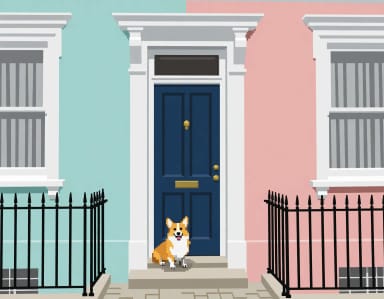
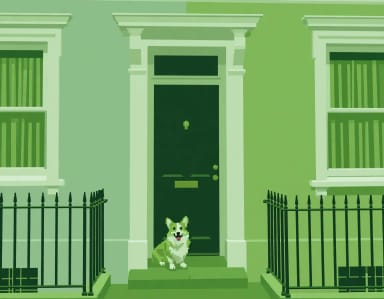
Pick your console generation
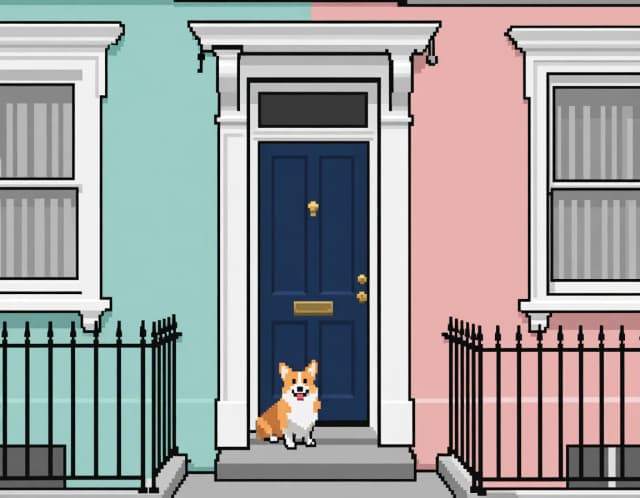
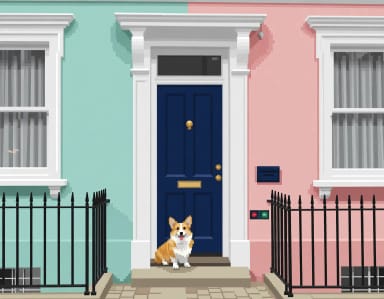
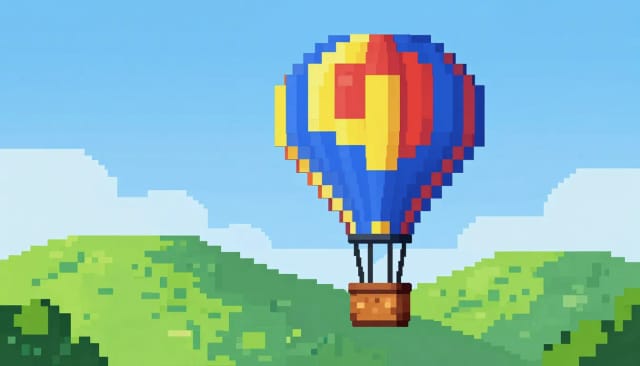
8-bit chunk, 16-bit detail, isometric — the same image at each resolution of nostalgia.
How it works
How the Pixel Art Converter turns your photo into retro art
From an ordinary photo to blocky, retro artwork in a couple of settings.
The Pixel Art Converter is an online tool that turns any photo or image into pixel art. You upload a picture, set how large each pixel block should be, choose a color palette, and download the result as a clean, downscaled pixel image.
It's built for the retro look specifically: chunky blocks, limited colors, hard edges. Whether you're making a game sprite, a profile icon, or a poster in 8-bit style, the converter handles the pixelation and color reduction for you instead of nudging pixels by hand in an editor. If you'd rather generate art from a text idea instead of converting an existing image, the AI Art Generator covers that side.
Block size and palette do the work
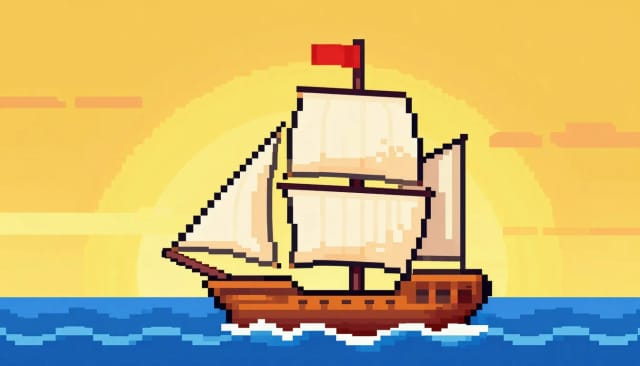
Under the hood, converting to pixel art comes down to two things: block size and palette. A larger pixel size groups more of the original image into each block, so the picture gets blockier and more abstract; a smaller size keeps more detail while still reading as pixel art. The palette then snaps every block to a limited set of colors, which is what gives real pixel art its consistent, retro feel.
The converter ships with four styles — 8-bit, 16-bit, Isometric and Game Boy — so you can jump between a chunky NES look and a smoother 16-bit palette without touching individual settings. Feed it the same photo with the same style and you get the same output every time, which matters when you're building a set of matching sprites or textures that need to look like they belong together.
From photo to sprite without pixel-by-pixel edits
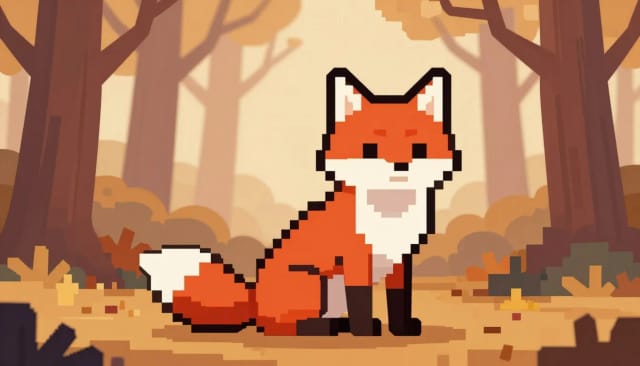
Converting a picture to pixel art by hand means downscaling in an image editor, manually cutting your palette, and cleaning up dithering pixel by pixel — slow, and easy to get inconsistent. The converter collapses that into a couple of settings and a download.
It also pairs well with other CreArt tools. Run a portrait through the background remover first so your sprite sits on a clean transparent base, or start from a rough drawing and turn your sketch into a finished image before pixelating it. If your source photo is small or noisy, the image upscaler can boost it first so the converter has cleaner detail to work from.
Who it's for
Who the Pixel Art Converter is for
Indie game developers
Turn reference photos and concept art into consistent sprites and textures without redrawing everything block by block.
Streamers and content creators
Make retro avatars, emotes and channel art in a matching 8-bit or Game Boy style from your own photos.
Digital artists and hobbyists
Experiment with pixel art from any picture, then refine the look by switching palettes and pixel sizes.
Designers making retro graphics
Convert a photo to pixel art for posters, stickers, thumbnails and merch that need a genuine blocky, low-color aesthetic.
Pricing
Convert your photos to pixel art free
Start converting images to pixel art at no cost, and move up to a plan when you need more conversions and higher-resolution downloads.
Free
$0
- 100 credits every day
- The Auto model, on our own servers
- No card needed
Paid plans
Basic · Starter · Creator
- 1,600 to 10,000 credits a month
- Every AI model, including premium ones
- AI video, and no ads in the mobile app
Why use it
Why creators use this photo to pixel art converter
Four ready-made pixel styles
Switch between 8-bit, 16-bit, Isometric and Game Boy looks. Each style carries its own block size and palette so you don't have to tune anything by hand.
Convert a picture to pixel art in seconds
Upload, pick a style and download. What takes ages in an image editor — downscaling, cutting palettes, cleaning up dithering — happens in one pass.
Consistent, repeatable results
The conversion is deterministic, not a random AI render. The same photo with the same settings always looks identical, which keeps a whole set of sprites on-brand.
Clean retro look, not just blur
Real color reduction and hard edges, not a filter that just fuzzes the image. You get the chunky blocks and limited palette that define genuine pixel art.
Works for sprites, icons and posters
Turn a portrait into a profile avatar, a photo into a game texture, or an illustration into an 8-bit poster from the same tool.
Free to try, no sign-up
Convert your first images online without creating an account. Test the styles on your own photos before deciding anything.
FAQ
Frequently asked questions about the Pixel Art Converter
Still have a question? Visit the help center →
How do I convert an image to pixel art?
How do I convert a picture to pixel art for free?
What image formats can I upload?
What pixel styles are available?
Does converting to pixel art use AI?
Can I use the pixel art I create commercially?
What size should each pixel block be?
Graffiti Generator
Write your name or any word in graffiti letters, free and with no sign-up: 8 letter styles, 6 color sets and real walls, ready to download. Or turn an idea into AI graffiti art.
AI Comic Generator
Describe a scene, pick an art style, and get finished comic panels in seconds — no drawing skills needed.
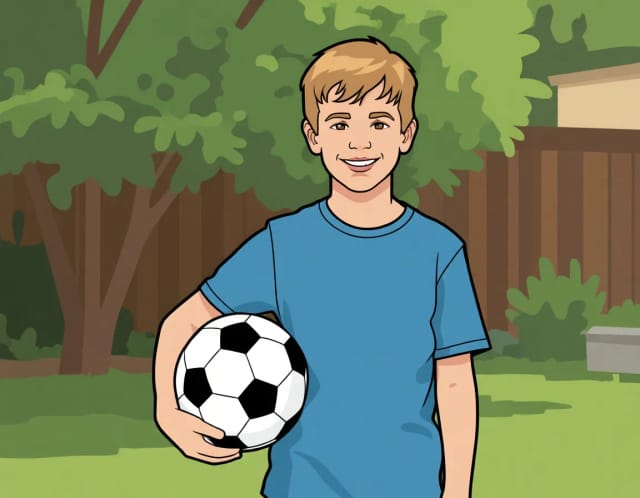
AI Photo to Cartoon
CreArt's photo to cartoon tool turns your photo into a cartoon, free and without sign-up. Pick one of 6 styles, from a 3D animated-movie look to comic and storybook; it usually takes under 20 seconds.
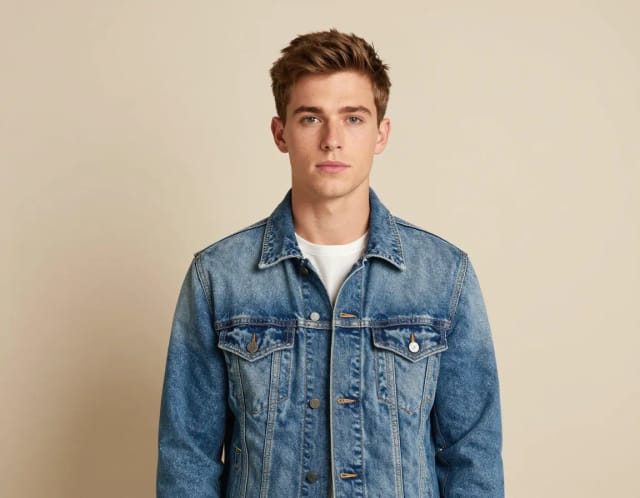
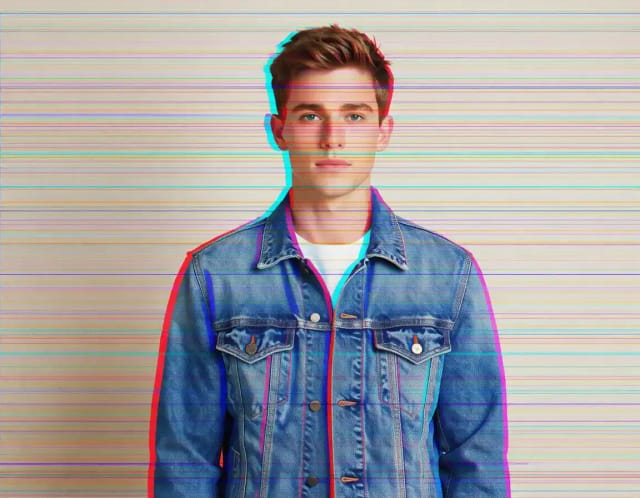
Glitch Effect for Photos
CreArt's Glitch Effect adds a glitch effect to any photo online, free and without sign-up: RGB shift, VHS, datamosh or cyber neon, usually in under 20 seconds.
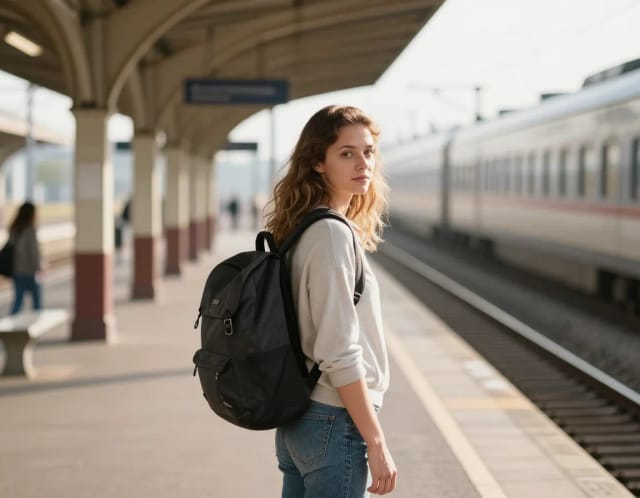
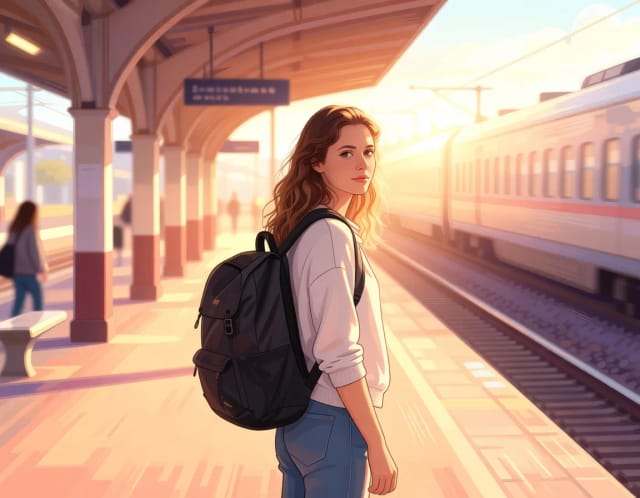
Photo to Anime
CreArt's photo to anime converter turns your photo into anime art, free and without sign-up. Pick one of 6 styles, from a soft, hand-painted film look to black and white manga; it usually takes under 20 seconds.
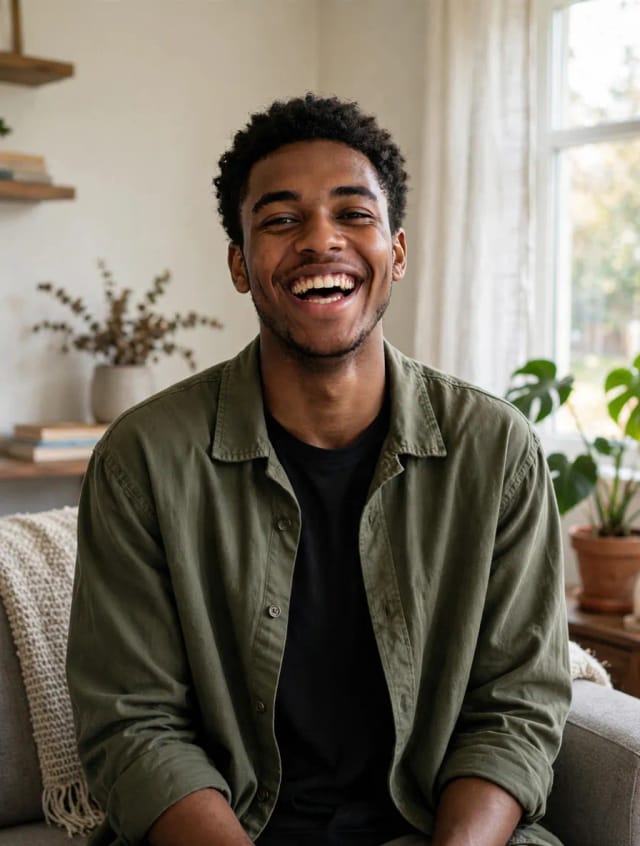
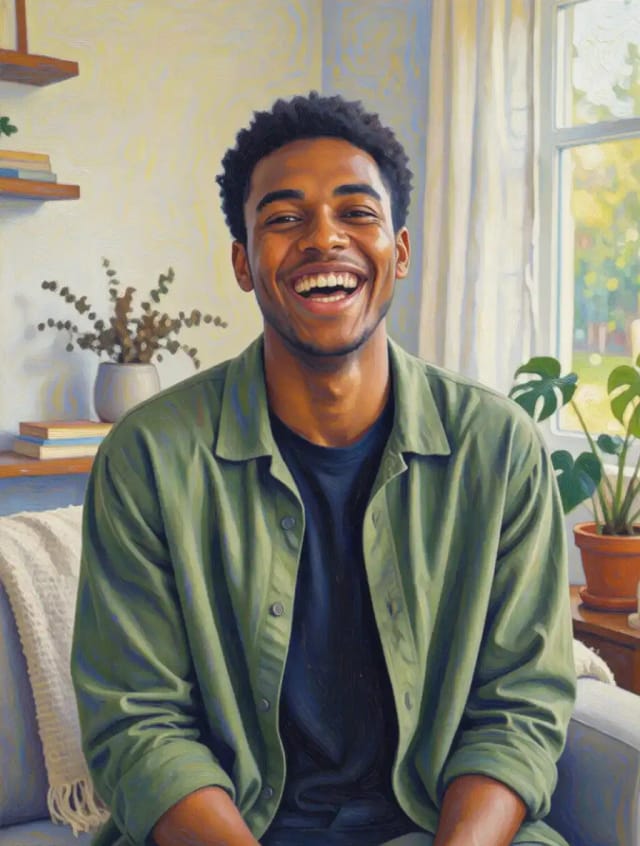
Photo to Painting
CreArt's photo to painting tool turns any photo into a painting, from a portrait painting to an oil painting look, free and without sign-up. Pick impressionist, baroque, palette knife, acrylic, expressionist or pop art; it usually takes under 20 seconds.
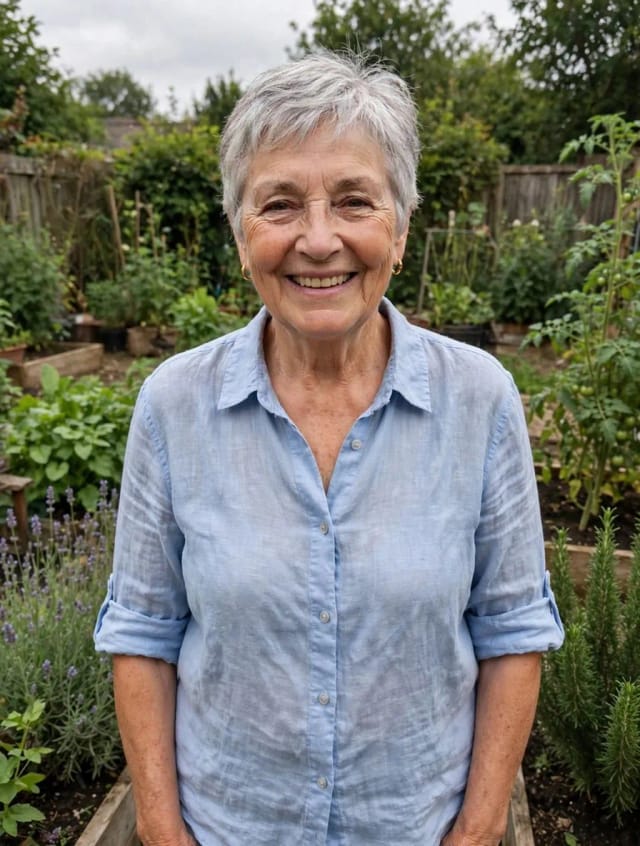
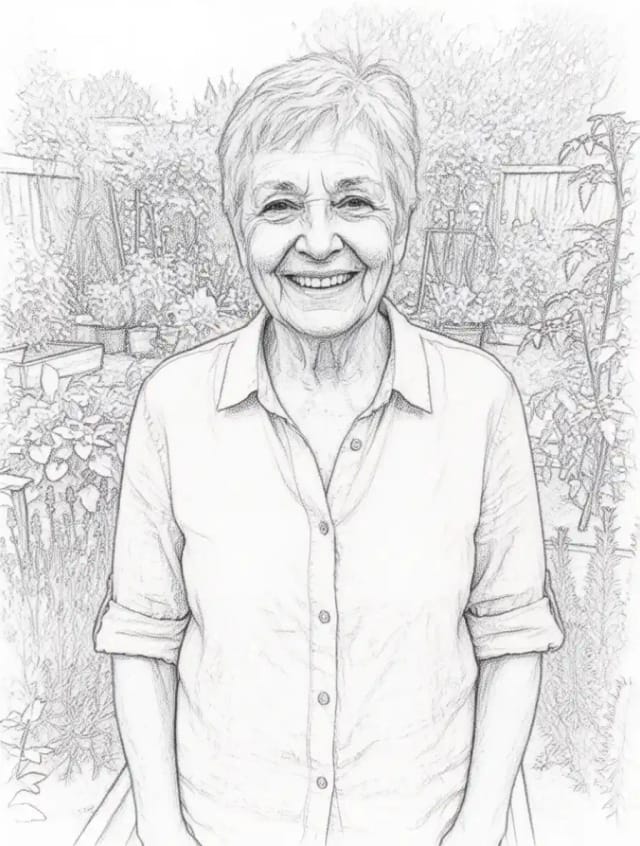
Photo to Sketch
CreArt's photo to drawing tool turns any photo into a pencil sketch, line drawing or eight other drawing styles for free, without sign-up, usually in under 20 seconds.
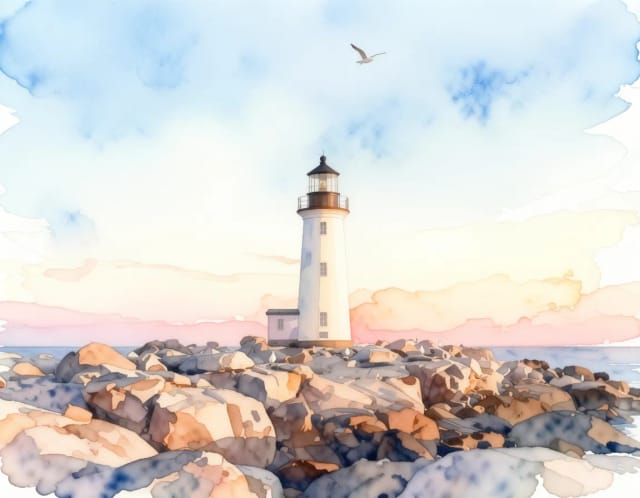
Photo to Watercolor
Turn any photo into a soft, hand-painted watercolor painting with AI — upload, pick a style, and download in seconds.
Ready to make something?
Open the tool, try the free Auto model and download the result.