
Sticker Mockup Generator
See your design as a die-cut, round or holographic sticker on a laptop or a bottle.
Your design
Text set apart from the design, like a line under a round logo, can be left off. Clear vinyl: the rest is see-through.
Shape and finish · Die-cut · Glossy
Where it goes · Laptop
10 free tries a day with Auto · No sign-up
Your design
Text set apart from the design, like a line under a round logo, can be left off. Clear vinyl: the rest is see-through.
Shape and finish · Die-cut · Glossy
Where it goes · Laptop
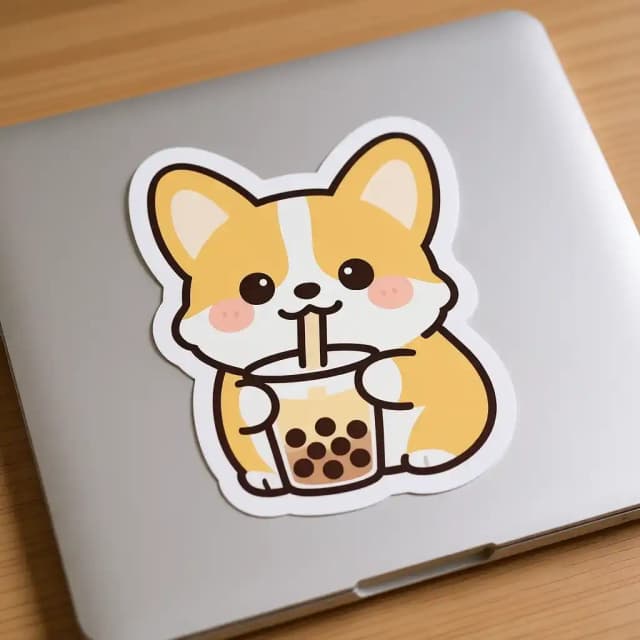
How to make a sticker mockup
Make a sticker mockup in 4 steps
No Photoshop, no PSD templates and no smart objects: upload, choose, create.
Upload your design
Add your sticker design, logo or illustration as a PNG or JPG. A transparent PNG is best; a plain white or single-color background is removed for you. No design yet? Try one of the two samples.
Pick the shape and the finish
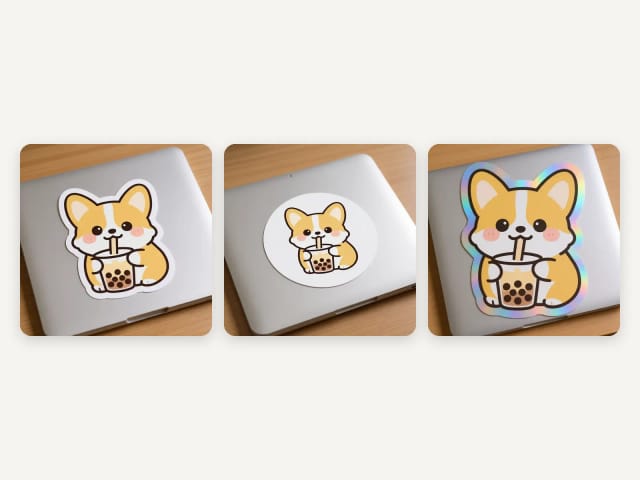
Die-cut along the outline, a circle, a rounded square or kiss-cut on its backing; in glossy, matte, holographic or clear vinyl.
Choose where it goes
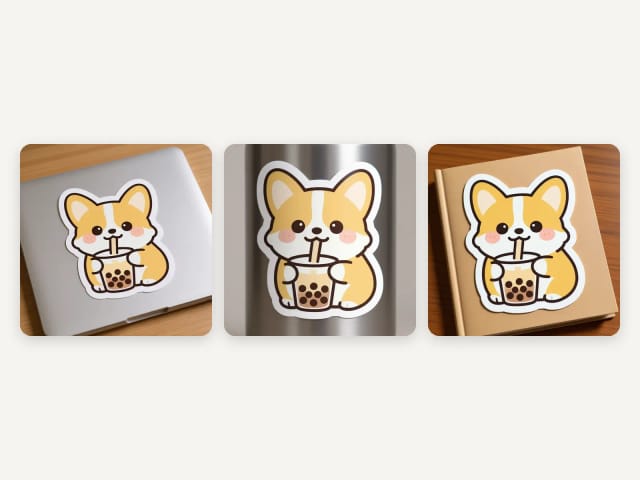
On a laptop, a water bottle or a notebook, held in the hand, flat on a table or on a car window.
Create and download
Press Create my mockup. The AI makes the sticker from your design and puts it in the scene, usually in under 20 seconds. Download the photo for your shop, your ads or a client.
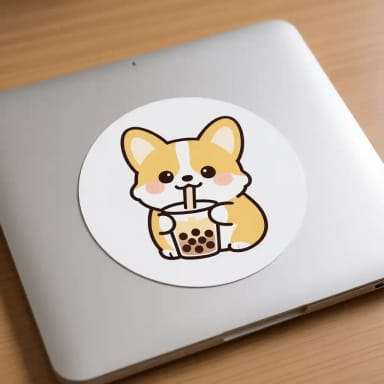
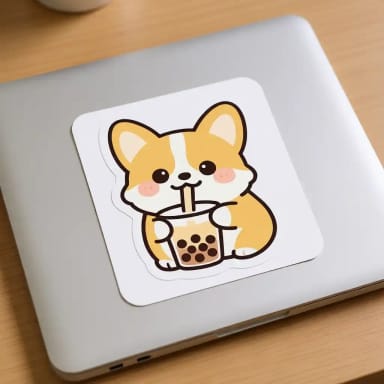
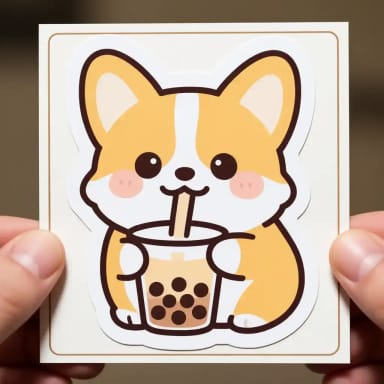
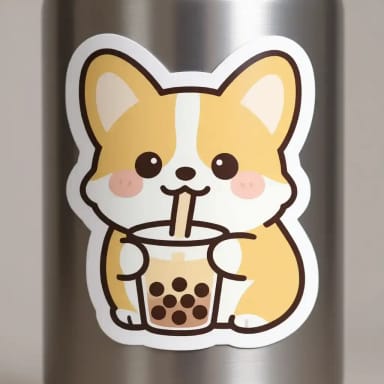
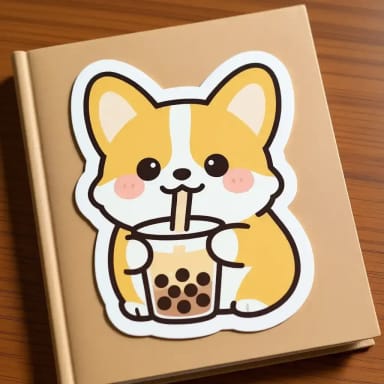
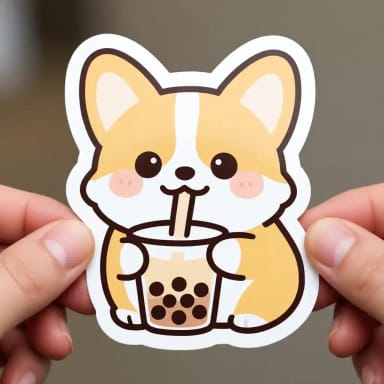
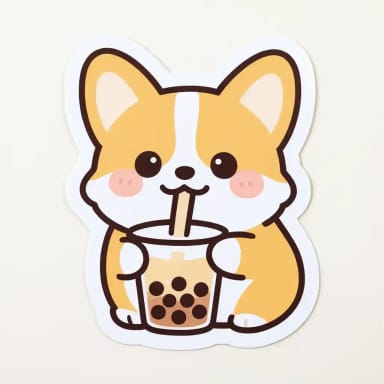
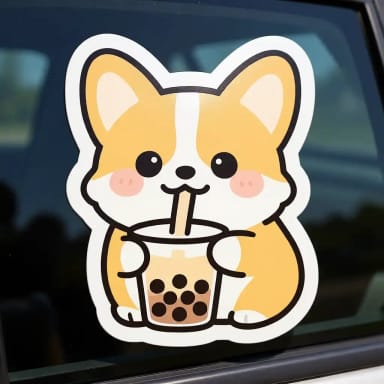
Shapes
Die-cut, round, square or kiss-cut
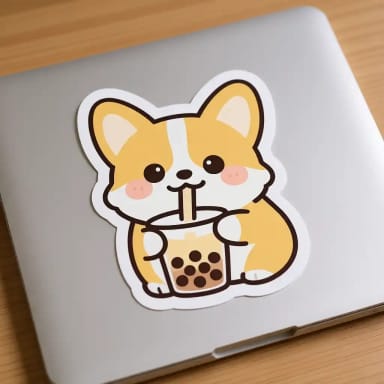
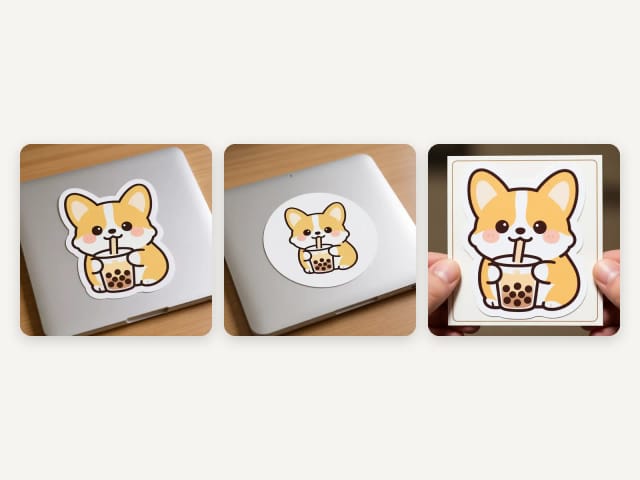
A die-cut sticker is cut along the outline of your design with an even border, the classic shape for laptop and water bottle stickers. Circle and rounded square put the design on a simple shape of white vinyl with a small margin: the usual choice for logos, shop seals and packaging.
Kiss-cut leaves the sticker on its square paper backing, the way sticker shops often send them. If your design already has a white border, like one made with the AI sticker generator, die-cut keeps it as the edge.
Finishes
Glossy, matte, holographic or clear vinyl
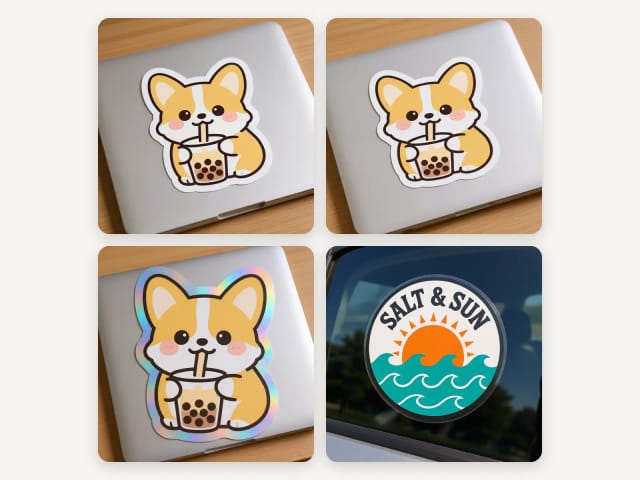
Glossy vinyl has a soft shine where the light hits; matte has none, for a flat, paper-like look, though in a photo the difference is subtle. Holographic adds a rainbow shimmer over the border and the background of the sticker, while the colors of your design stay the same.
Clear vinyl prints only your design, white parts included, and leaves the rest see-through: the laptop, the bottle or the window shows through around it. A light design on a light surface can disappear, so for clear stickers pick a dark place or a design with strong colors.
Your file
Which design file works best
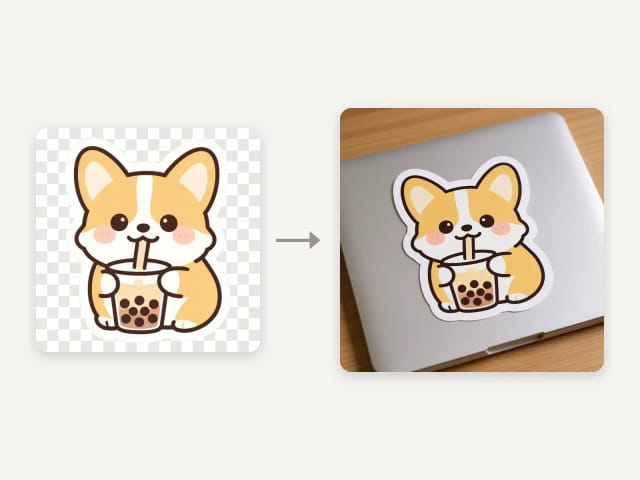
A PNG with a transparent background gives the cleanest sticker. A design on a plain white or single-color background works too: the tool removes that background first, and the white parts inside the design are kept.
Bold shapes and short words read best at sticker size; very tiny text can blur. No design yet? Make one with the AI sticker generator and bring the PNG here, or start from a logo made with the AI logo generator.
For your shop
Sticker mockups for listings and clients
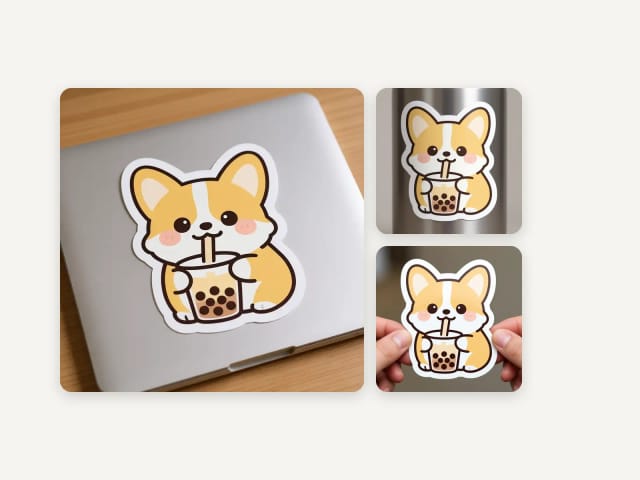
Sticker shops sell with photos: a sticker on a laptop or a water bottle shows the size and the finish better than a flat file. Make one photo per design, or the same design in every finish, for your listing, your ads or a client.
Selling merch too? See the same design on a mug, a tote bag or a t-shirt, or try posters and books in the mockup generator.
What you get
What the sticker mockup generator includes
Everything you can pick, in one table.
| Feature | Details |
|---|---|
| Shapes | Die-cut, circle, rounded square and kiss-cut on its backing |
| Where it goes | Laptop, water bottle, notebook, in hand, flat and a car window |
| Finish | Glossy, matte, holographic or clear vinyl |
| Your file | PNG or JPG; a plain background around the design is removed automatically |
| Price | Free with the Auto model, without an account; plans add more mockups a day |
Who it's for
Who this sticker mockup generator is for
Anyone who wants to see a sticker before printing a roll of them.
Sticker shops
Make a photo for every design and finish you list on Etsy, Redbubble or your own shop.
Illustrators
Show your art as a sticker on a laptop or a bottle before you order a print run.
Small brands
See your logo as a round seal, a square or a die-cut sticker for packaging and giveaways.
Designers
Show a client a sticker design on a real-looking surface for approval.
Events and communities
Preview stickers for a team, a festival, a club or a launch.
Why use it
Why use this sticker mockup generator
Built for one job: a sticker photo you can use today.
4 shapes
Die-cut, circle, rounded square and kiss-cut on its backing.
4 finishes
Glossy, matte, holographic and clear vinyl, with no white on clear.
6 places
Laptop, water bottle, notebook, in hand, flat and a car window.
Background removed for you
A design on a white or plain background is cut out first, so the sticker follows your design.
Free, no sign-up
Make sticker mockups with the Auto model for free every day, without an account.
No PSD, no Photoshop
No templates to download, no smart objects to edit: upload, pick and create.
Pricing
Free to start, more when you list more
Make sticker mockups for free with the Auto model, no account needed. Pick a plan when you need more mockups a day.
Free
$0
- 100 credits every day
- The Auto model, on our own servers
- No card needed
Paid plans
Starter · Creator · Pro
- 4,000 to 25,000 credits a month
- Every AI model, including premium ones
- AI video, and no ads in the mobile app
Is this sticker mockup generator free?
How do I make a sticker mockup?
Which sticker shapes can I use?
What is the difference between die-cut and kiss-cut?
How do holographic and clear stickers look?
What file should I upload?
Will my design stay exactly the same?
Do you print the stickers?
Can I download the mockup as a transparent PNG?
Can I use the mockups commercially?
Can I make mug, tote bag or t-shirt mockups here?
CreArt is not affiliated with, endorsed or sponsored by Kindle, Etsy or Redbubble. Kindle is a trademark of Amazon.com, Inc. Etsy is a trademark of Etsy, Inc. Redbubble is a trademark of Articore Group Limited.
AI Sticker Generator
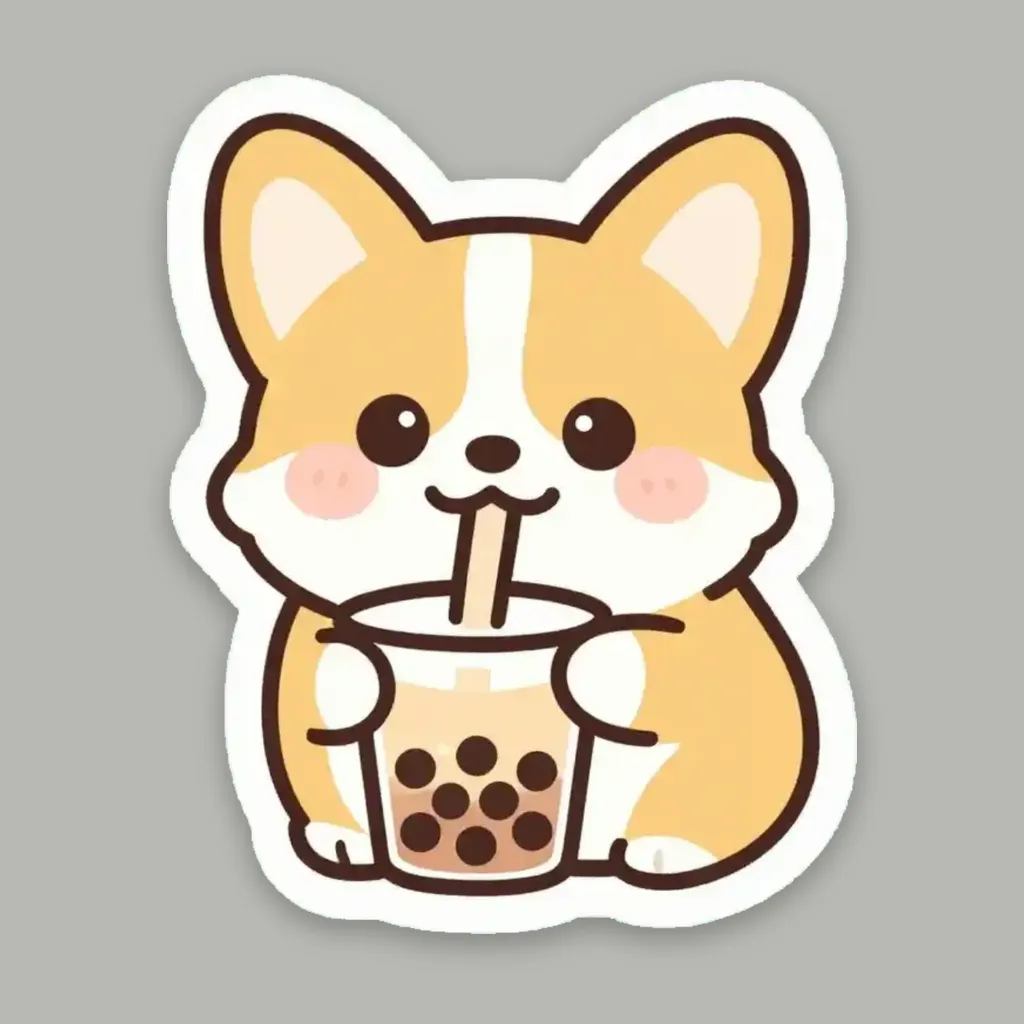
Turn a text idea or your own photo into a die-cut sticker, then print a sheet of 12.
AI Mockup Generator
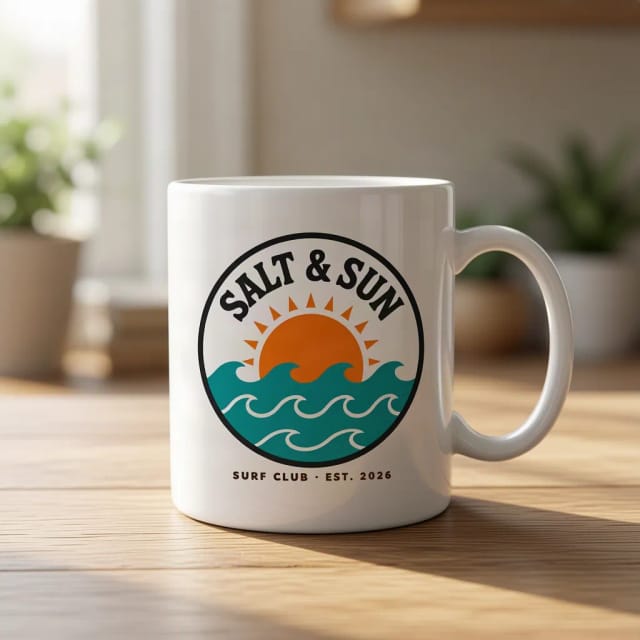
CreArt's free AI Mockup Generator puts your design on 15 products, from mugs and posters to book covers, usually in under 20 seconds. No sign-up.
Mug Mockup Generator
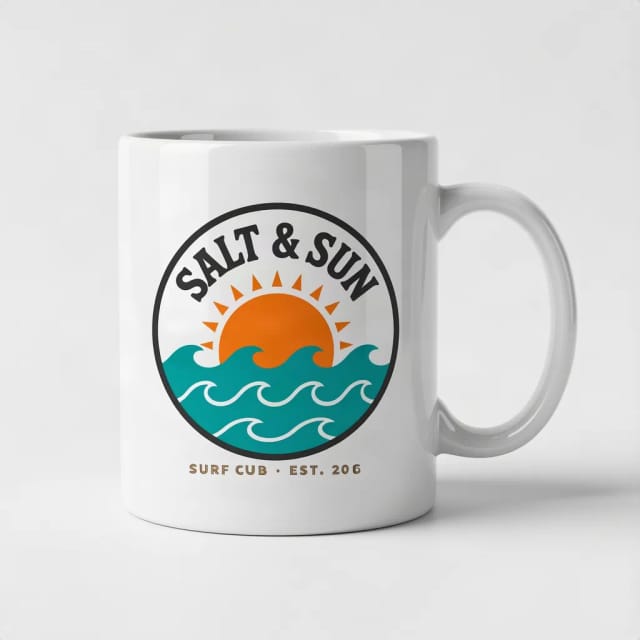
See your design on a coffee, two-tone, enamel or travel mug, in hand or as a gift.
Tote Bag Mockup Generator
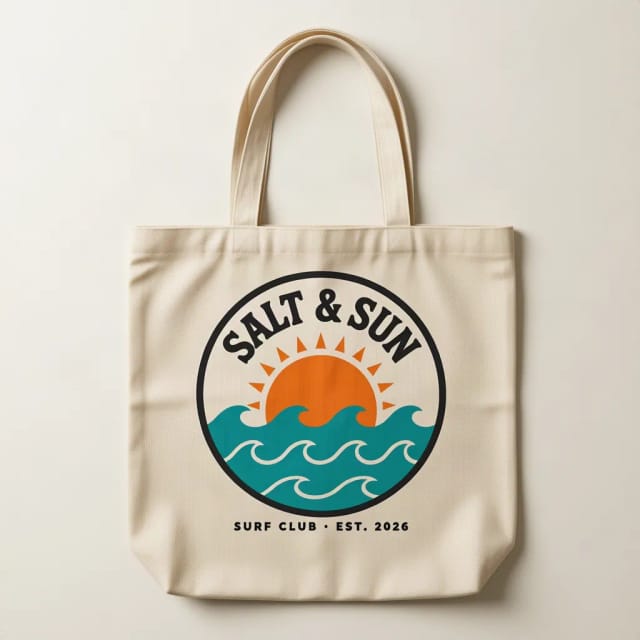
See your design on a canvas tote bag, flat, hanging or on a shoulder.
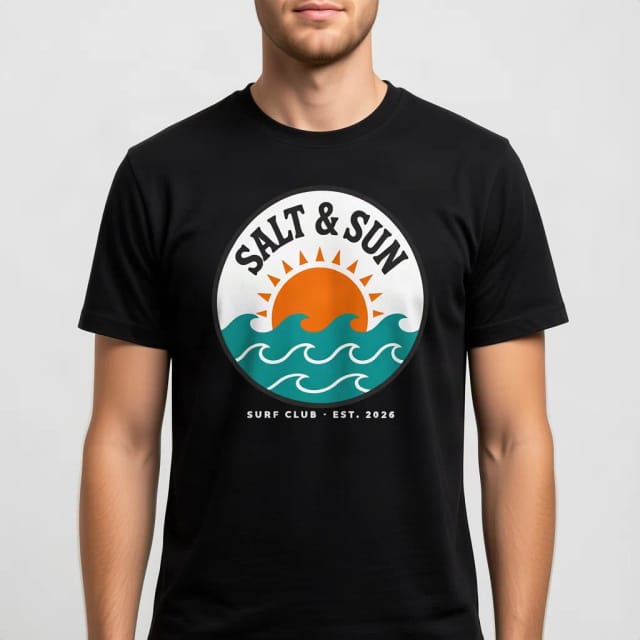
T-Shirt Mockup Generator
CreArt's free T-Shirt Mockup Generator puts your design on 7 garments in 12 colors, front or back, usually in under 20 seconds. No sign-up.
AI Logo Generator
Free AI logo maker: the AI draws your symbol and your name is set in real fonts, never misspelled.
AI Album Cover Maker
Make an album cover with AI: describe your music, pick one of 16 styles and add your name and title, spelled right. Free, no sign-up.
Book Cover Generator
Make a book cover with AI: describe it, pick a genre, type your title.
Ready to make something?
Open the tool, try the free Auto model and download the result.